Video speed and loops
The playback speed videos and nested compositions can be adjusted, and even animated, to make 'speed ramping' transitions.
Edit video speed
To play a video faster or slower, edit the speed value in the video properties, animate the speed properties to set a variable speed. If you're using the compositing editor, it's visually easier to manage the video speed using the graph editor.
Loop a video
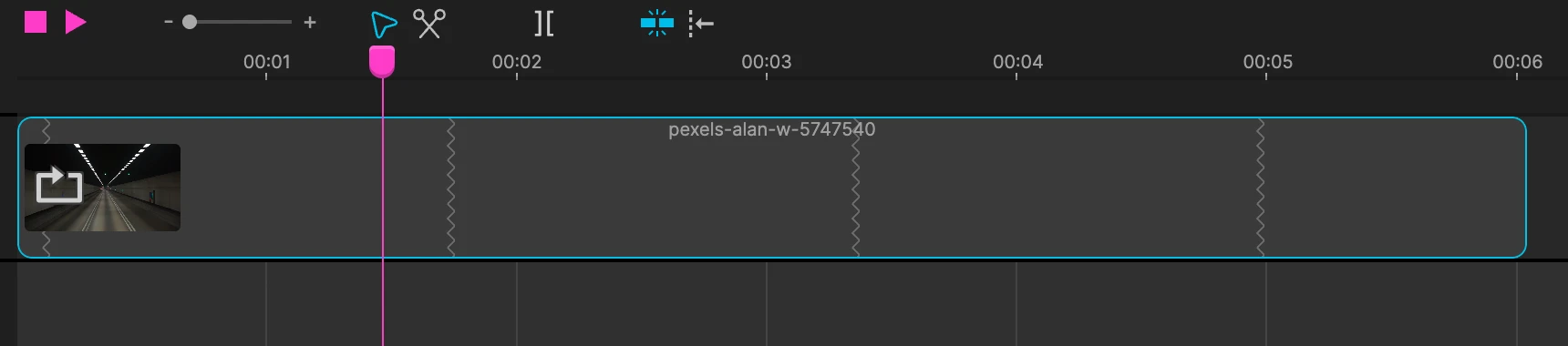
To keep a video looping, enable 'loop video' in the video properties. Once enabled, you can now extend the video stripe in the timeline. On the timeline stripe, each zigzag line corresponds to a time loop.
Adjust the 'loop end frame' value to loop only a portion of the video.
Play a video backwards (reverse)
To play a video backwards, set the video speed to a negative value (ex: -100%) and enable the video loop option, the video now plays backwards!